Verint Community
Verint Community
  • User
  • Site
  • Search
  • User
  • Home
  • News Center
    News Center
    • Announcements
    • Leadership Blog
    • Company & Industry News
    • Featured News
    • Events
  • Communuties of Practice
    Communuties of Practice
    • Practice A**
    • Practice B
    • Practice C
  • Partners
    Partners
    • Partner News
      Partner News
      • Partner Summit
    • Partner A**
    • Invest Manager #1**
    • Partner C
    • Partner Portfolio
  • Product Development
    Product Development
    • Project X**
    • Product DX5763*
    • Project Z
    • FieldPulse
  • Community Help
  • Magnolia Gives Back
  • Demo
    Demo
    • Edgepack Demo
    • Additional Products
  • All Content
    All Content
    • All Articles
    • All Blog Posts
    • All Discussions & Questions
    • All Events
    • All Files
    • All Ideas
    • All Wikis
Community Help
Community Help
Help Documents How to Create a Blog Post
  • Q & A
  • How To Videos
  • Help Documents
  • Members
  • Mentions
  • Sub-Groups
  • Tags
  • More
  • Cancel
  • New
Community Help requires membership for participation - click to join
  • +Help Documents
  • Check Out This Video on How to Get Engaged in the Community
  • -Creating and Managing Content
    • @Mention
    • How to Create a Blog Post
    • How to Create and Share an Event
    • How to Create Bookmarks
    • How to Share External Resources
    • How to Start a Discussion
    • How to Use Search
  • +Embeddable
  • +Following & Managing Notifications
  • +Member Directory
  • +Profile

How to Create a Blog Post

To start a blog post you have two options.

Option 1: From the homepage of any group Click the +NEW button in the upper right corner and select Post to [Blog Name]

Option 2:. From the Blog page, click the +NEW button in the upper right corner

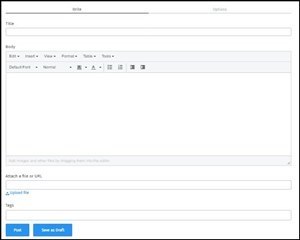
2. On the Write tab, enter a descriptive title for your post.

3. Attach any relevant URLs to external websites or resources that are relevant to your post and tag with some relevant key words so that your post is easily searchable.

4. Click the Post button to submit your blog entry. This will now be visible to the community.
We hope this helps. If you have any feedback about this help page, feel free to drop us a line in the Ask a Question area!

  • Share
  • History
  • More
  • Cancel
Related
Recommended